Family Tree is a focused family tree maker — not a generic mind map with family icons. Open it at /app/genealogy. Use it for genealogy, language family trees, clan lineage, or org charts.
For Kifuliiru work, that often means a language-family tree, a dialect map, or a Bafuliiru clan lineage — then export JSON or SQL into Wekify preservation platforms. The canvas stays the same for household genealogy and org charts too.
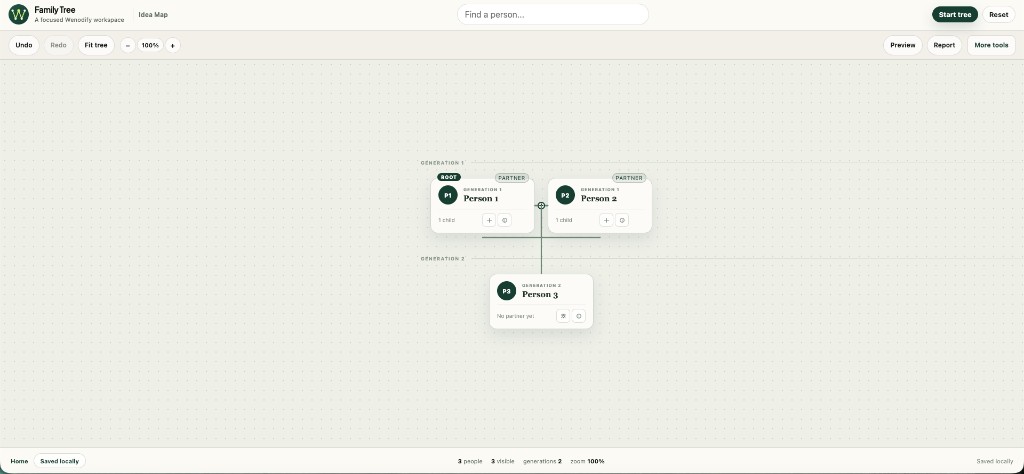
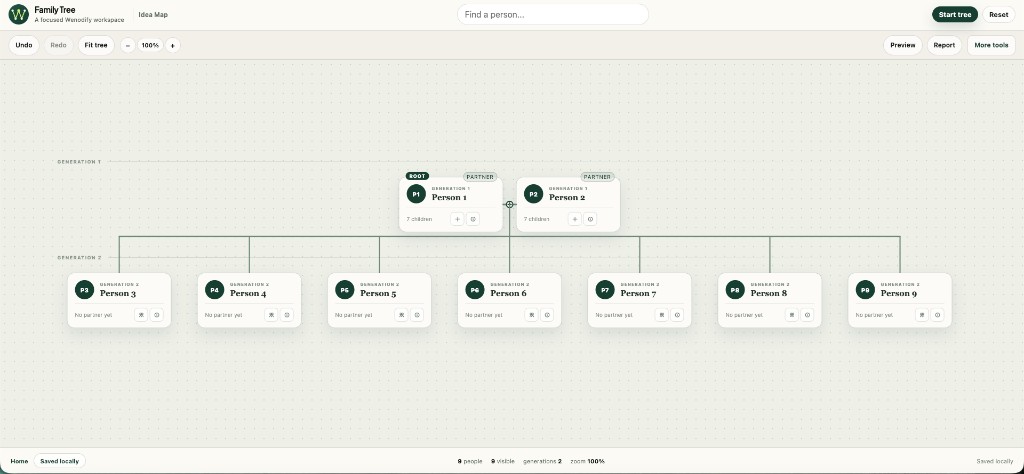
Partners sit on the same generation row. Children drop from the couple midpoint. Each new household forms its own balanced branch as the tree grows wide and deep. The canvas stays the same whether you are mapping genealogy, language families, clan lineage, or org structure — you pick a tree type when you start to set labels and export meaning.
Pick a tree type, then Start → Connect → Grow — eight templates, one canvas.Templates
Family tree types
Eight templates set a display name, short description, default root label, and relationship hints. They do not change layout or canvas logic — only how you frame the tree and what treeType appears in exported JSON.
Family Genealogy — default; parents, children, and partners
Language Family Tree — proto-language → branches → dialects
Clan & Lineage Tree — ancestor → clan branches → living members
Noun Class Tree — root noun class → subclasses → example words
Word Etymology Tree — root word → evolved forms → modern variants
Dialect Map — parent language → regional dialects → sub-dialects
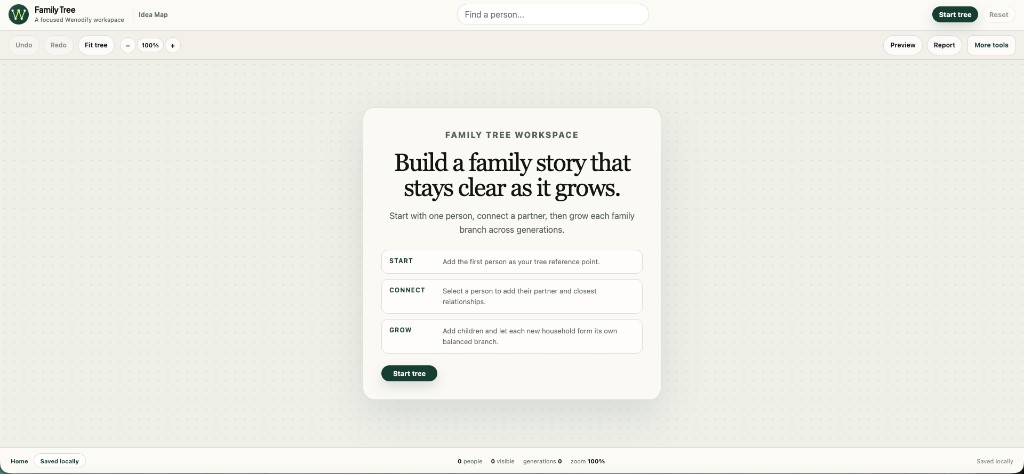
StartAdd the first person as your tree reference point (generation 0). This is your root household anchor.
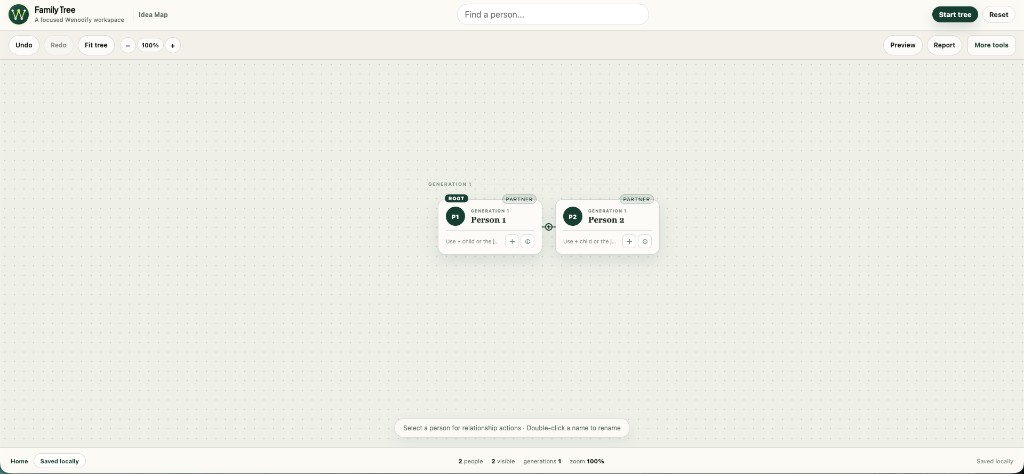
ConnectSelect a person and add their partner. Placeholder partners start inactive — name and activate them when ready.
GrowWith an active couple selected, add children. Each child can later get their own partner and descendants, forming new households.
Click behavior
No partner yet → adds a partner (may start as placeholder)
Placeholder partner → activates and names the partner
Active couple → adds a child to the household
Double-click any name → rename inline
Partners sit side by side on the same generation row.Children connect from the couple midpoint — first child centered, siblings alternate.Data model
Relationship fields
Each person in the export includes:
Field
Meaning
label
Display name (double-click to rename)
partnerId
Spouse or partner on the same generation row
parentIds
Zero, one, or two parents — multi-parent links supported
depth
Generation index (0 = root generation)
isPlaceholder
Inactive partner slot until activated
collapsed
Hide descendants while keeping data intact
Exports use mode: "family-tree" and treeType (for example family-genealogy or language-family) — not graph_type. See export guide and tree types.
Layout
Layout rules
Partners always appear side by side on the same generation row.
A vertical drop from the couple midpoint connects to a children line below.
Children are placed symmetrically — first child centered, then alternating left and right as siblings are added.
Auto-layout stays on; use Fit tree (⌘0) to reframe the canvas.
Generation labels appear on the left as depth increases.
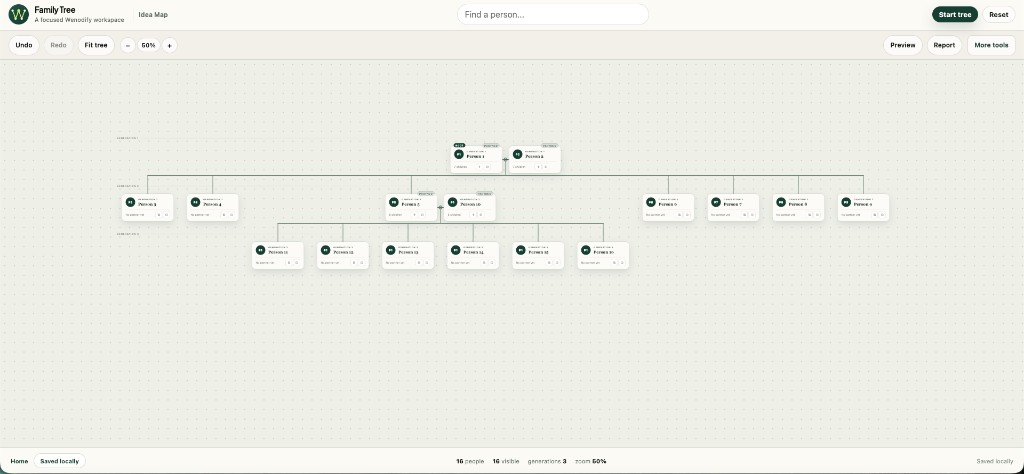
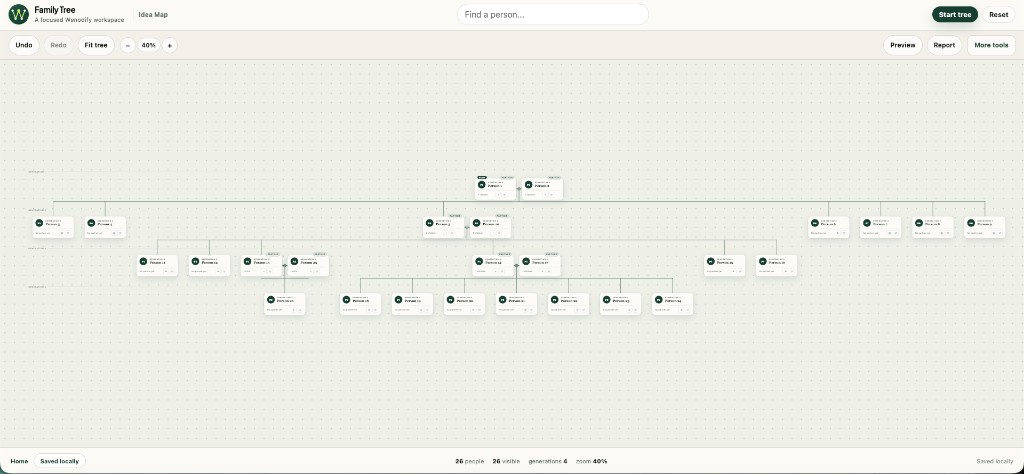
Large trees stay readable — zoom out, search people, collapse branches.Four generations at 40% zoom — fit tree recenters when you need to reorient.Tools
Inspector, report, and more
Inspector
Select a person to open the inspector — activate partners, add children, jump to relatives, view details, collapse subtree, or delete.
Report panel
Summarizes totals, visible vs hidden, generations, leaves, average children, largest subtree, longest path, most connected person, and a text outline you can copy or download.
More tools menu
Expand all / collapse all / center root
Delete selected or delete all
Import JSON, export JSON / SQL / PNG
Household branches stay balanced as sibling count grows.