A modern browser. That is it. Studio runs entirely in the browser — the mind map canvas (Idea Map) at /app/idea-map, the whiteboard (Idea Pad) at /app/idea-pad, the family tree maker at /app/genealogy. Your work autosaves to local storage on your device.
Where this sits: Wenodify is this platform, built by Wekify and listed with other non-language products on Peacae.com. It exists so people can create Kifuliiru content visually — conversations, questions, maps — then export it. The same studios work for other languages and other kinds of work.
Workflow
Four steps to your first export
Choose a studioIdea Map for mind maps and concept maps — conversations, quizzes, lesson steps, explorers. Idea Pad for a freeform whiteboard — sticky cards, ink, and arrows. Family Tree for a family tree maker — genealogy, language families, org charts, and more.
Configure and startIdea Map asks you to pick a graph type first — it sets node labels and export profile. Idea Pad opens straight onto the board. Family Tree asks you to pick a tree type — it sets starting labels and the treeType field in export.
Grow the structureAdd children, partners, or branches. Double-click names to rename. Use search, collapse, fit-to-view, and undo as the map grows. See keyboard shortcuts.
ExportUse Import and Export in the studio toolbar. Export JSON to keep editing, SQL for loaders, or PNG for Family Tree snapshots. Export guide
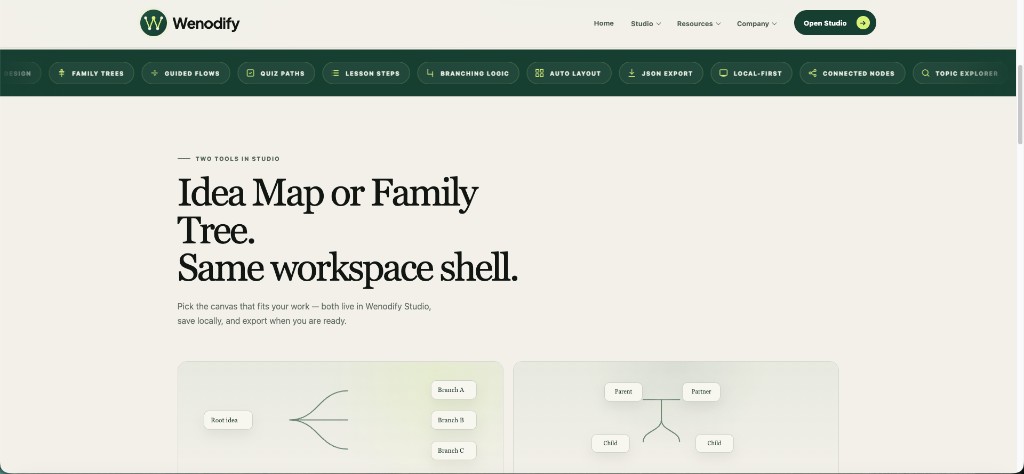
Three studios, one brand — a mind map canvas, a whiteboard, and a family tree maker.Studios
Idea Map, Idea Pad, and Family Tree
These are separate studios with separate saves — not modes inside one app. Switching between them does not merge data.
Idea Map
Mind map and concept map nodes with label, body, status, parent_id hierarchy.